
How to Donate Online: An Easy, Step-by-Step Guide for Our Members
We are so grateful for your heart to support the 2026 Chicagoland Campaign for Christ! Your financial gifts and pledges allow us to book safe venues, organize local community outreach, and share the Gospel of Jesus Christ across Chicago.
We know that using a new website can sometimes feel a bit confusing or intimidating, especially if you do not do a lot of things online. We want to make this process as safe, clear, and easy as possible.
Below is a completely literal, step-by-step guide showing you the exact buttons to press and things to type. Simply follow steps 1 through 5 below to match the pictures on your screen!
💡 Please Note: The colorful yellow circles, numbers, and red arrows you see on the photos below were custom drawn by our team to help point you in the right direction. You will not see these yellow circles or red arrows on the actual website—just a clean, simple blue-and-white page!
Step 1: Start on the Homepage
Open the internet browser on your mobile phone, tablet, or home computer, and type this exact address into the search bar: www.chicagocfc.org
Once the page loads, you will see our main blue screen. You are now on the homepage!
Compare your screen to the image below:
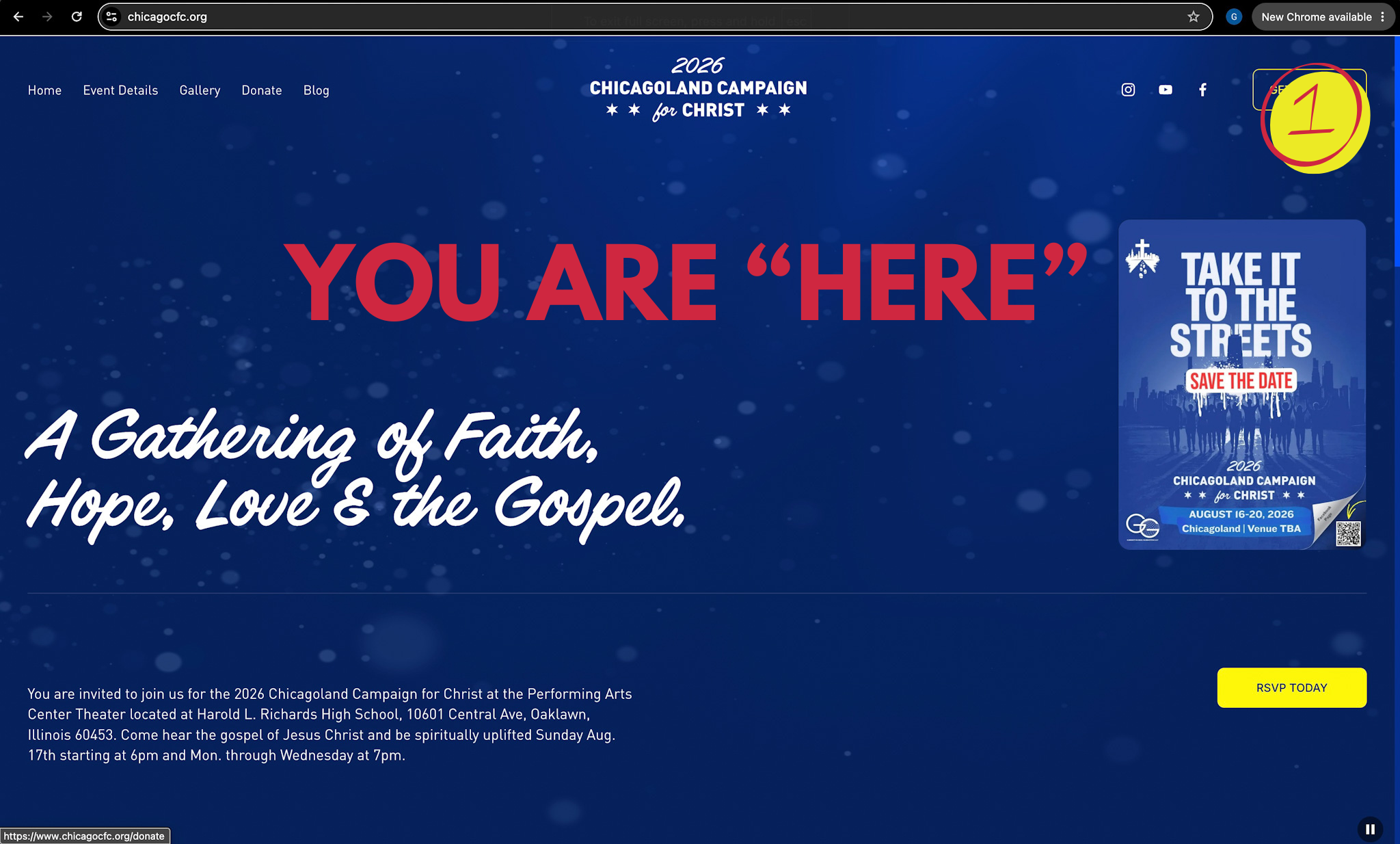
(Image: The clean, blue-and-white homepage layout as it appears on your screen when you first visit the site.)
Step 2: Click "DONATE"
Look near the top left corner of your screen. You will see a small list of words (Home, Event Details, Gallery, Donate, Blog).
Move your finger or mouse and Click or Tap on the word "Donate".
Compare your screen to the image below:
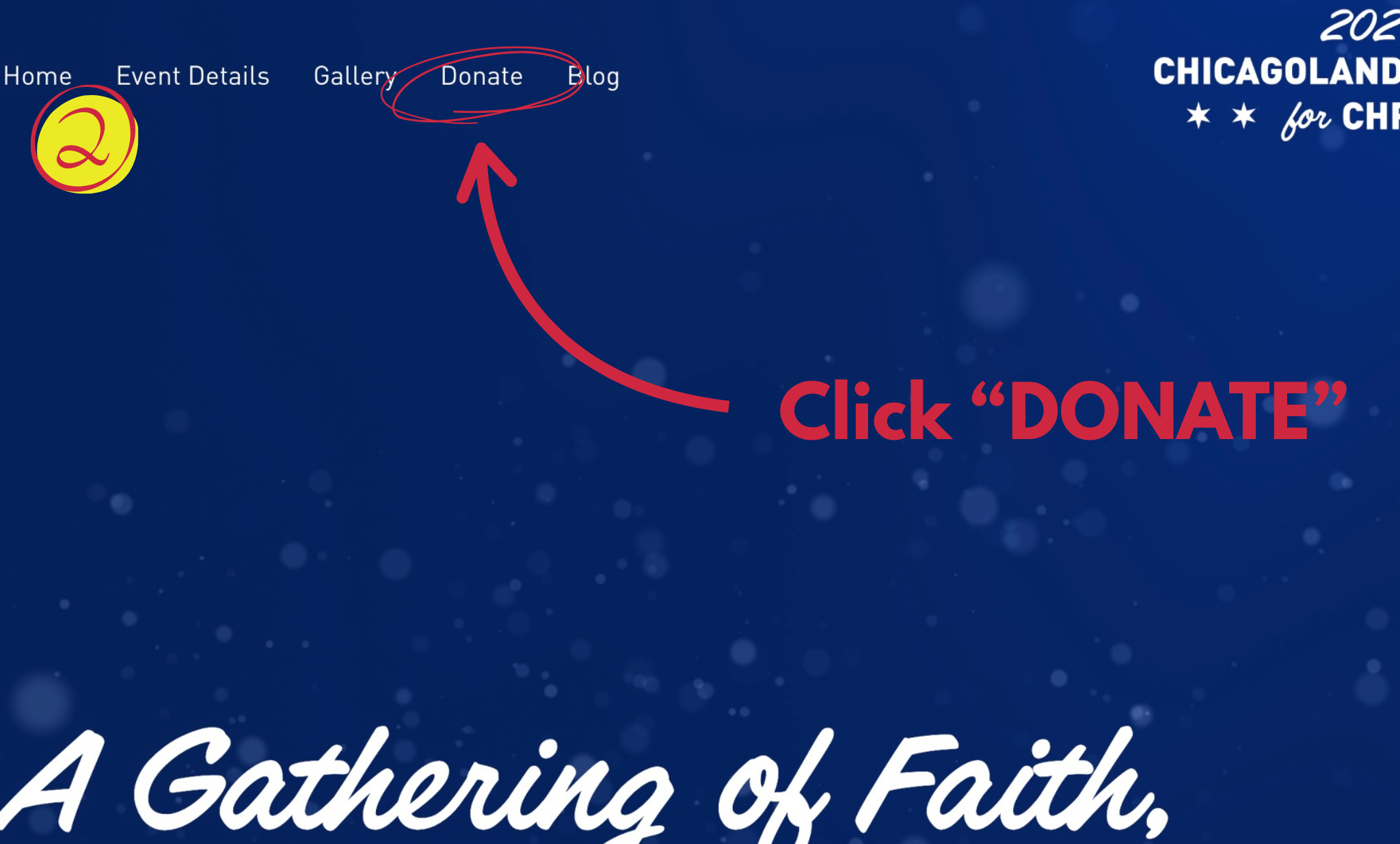
(Image: A close-up view of our website header menu, showing the clear list of pages you can visit.)
Step 3: Fill Out the Form and Hit "Donate" (Circle 3)
On this screen, you will fill in your name and credit or debit card details.
Is my card safe here? Yes! Our website uses industry-standard secure checkout. It is completely encrypted and private—exactly like paying a utility bill online.
Saving your details (Optional): If you want the website to safely remember your card so you don't have to type it in next time, check the box that says "Create an account". If you do not want to save your details, just leave that box unchecked.
Finish: Tap the red button at the bottom that says "DONATE".
Compare your screen to the image below:
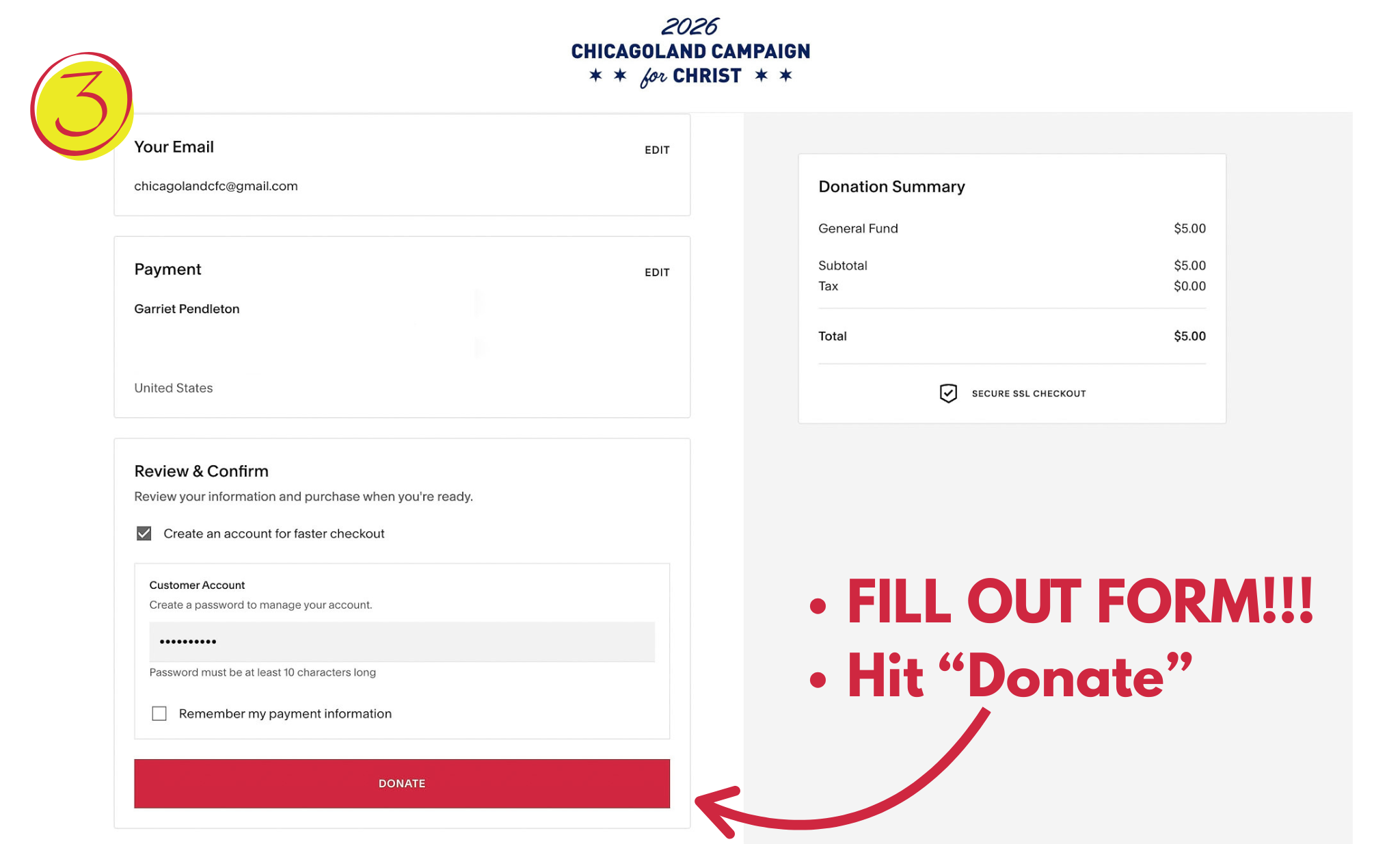
(Image: Our secure, clean payment details panel where you enter your card information and tap the red submit button.)
Step 4: Provide Your Email for Your Receipt (Circle 4)
Now you are on our secure payment page.
Type your email address into the empty box. We need this so the system can instantly send a tax receipt directly to your email inbox for your safekeeping and records.
Tap the red button that says "CONTINUE".
Compare your screen to the image below:
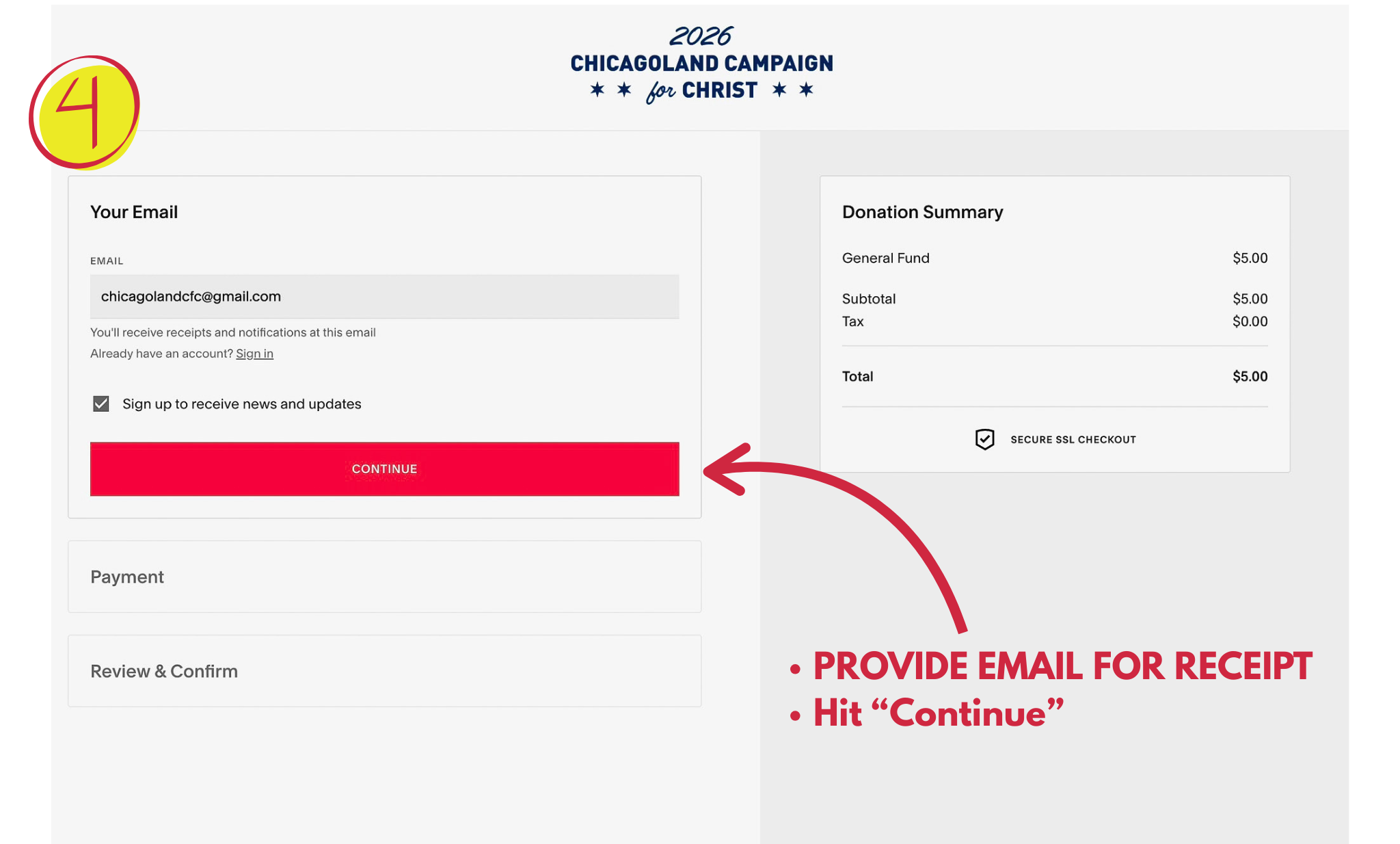
(Image: The simple email entry box with the red button to continue to the payment options.)
Step 5: You Are All Done! (Circle 5)
Once your payment goes through, you will see a receipt on your screen confirming it was successful.
You are officially DONE! You can close the window. You do not need to print or write anything down—our system has already sent a copy of this receipt directly to your email inbox for safekeeping.
Compare your screen to the image below:
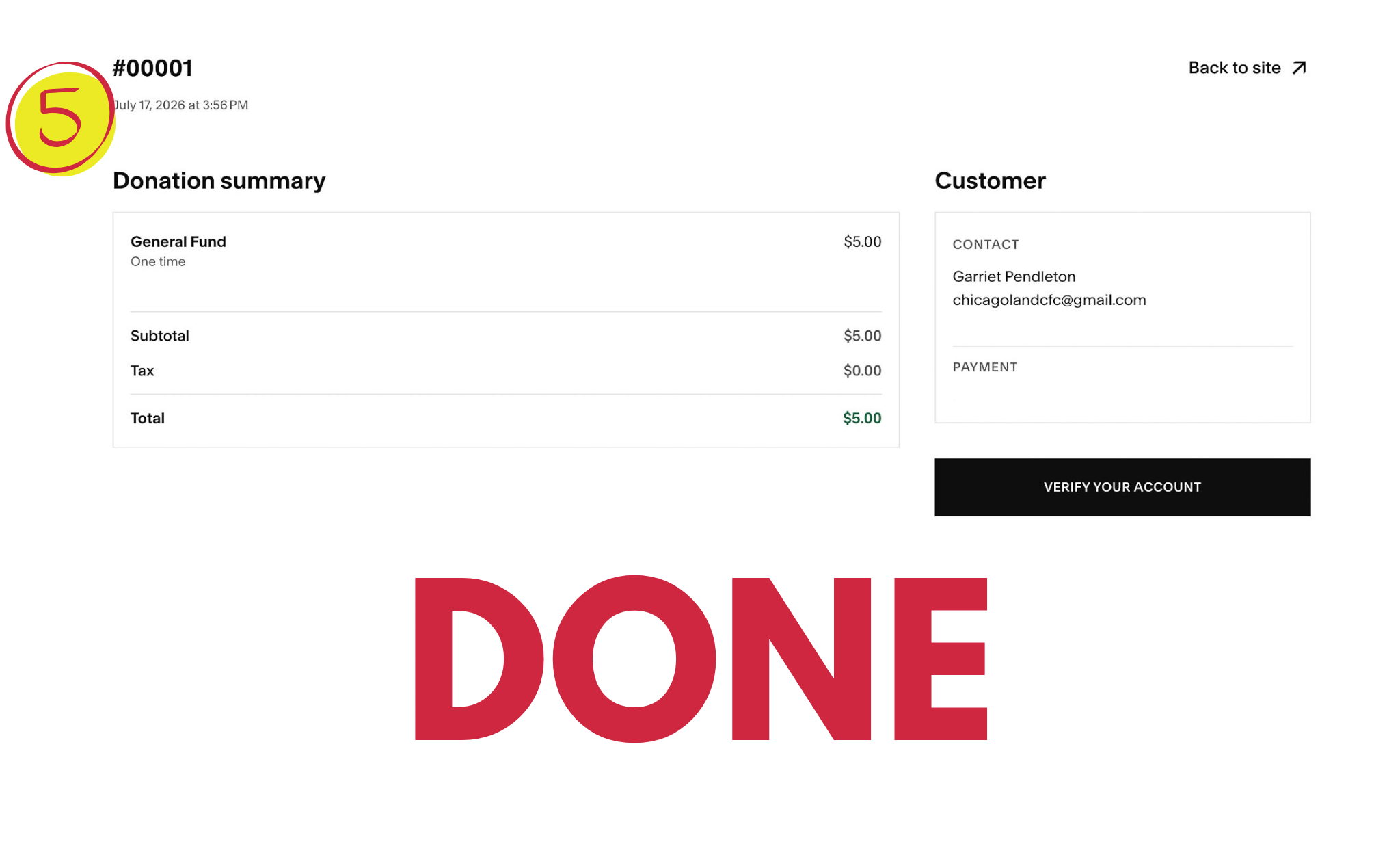
(Image: The final checkout confirmation page showing your detailed donation receipt.)
Need a Hand? We Are Here to Help!
If you try these steps and still feel stuck, please do not worry! Simply ask one of our tech volunteers, greeters, or leadership members at the building this Sunday, and we will gladly sit down and walk you through it in person.
Thank you so much for your support, and God bless you! 🙏❤️
